
Mobile Tips & Tricks
Master these gestures and shortcuts to capture ideas more efficiently on mobile.
-
 01 / 12
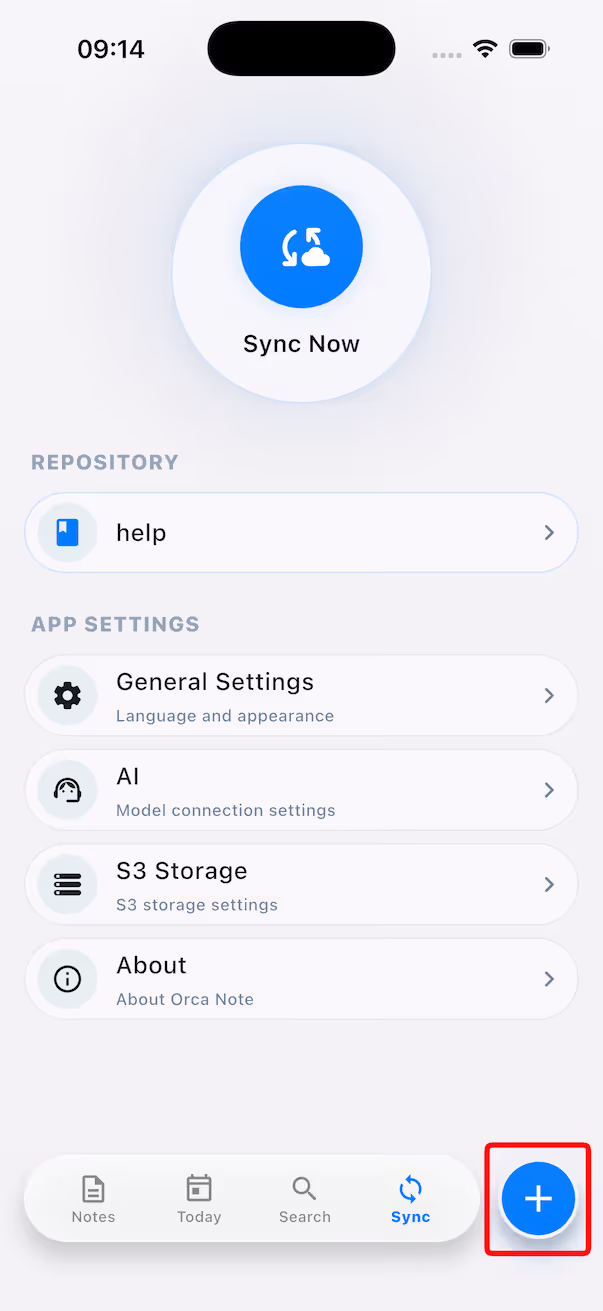
Long-press the + button to record quickly
Long-press the + button at the bottom-right to start recording quickly. When recording finishes, the audio is automatically placed under the current day's journal block.
-
 02 / 12
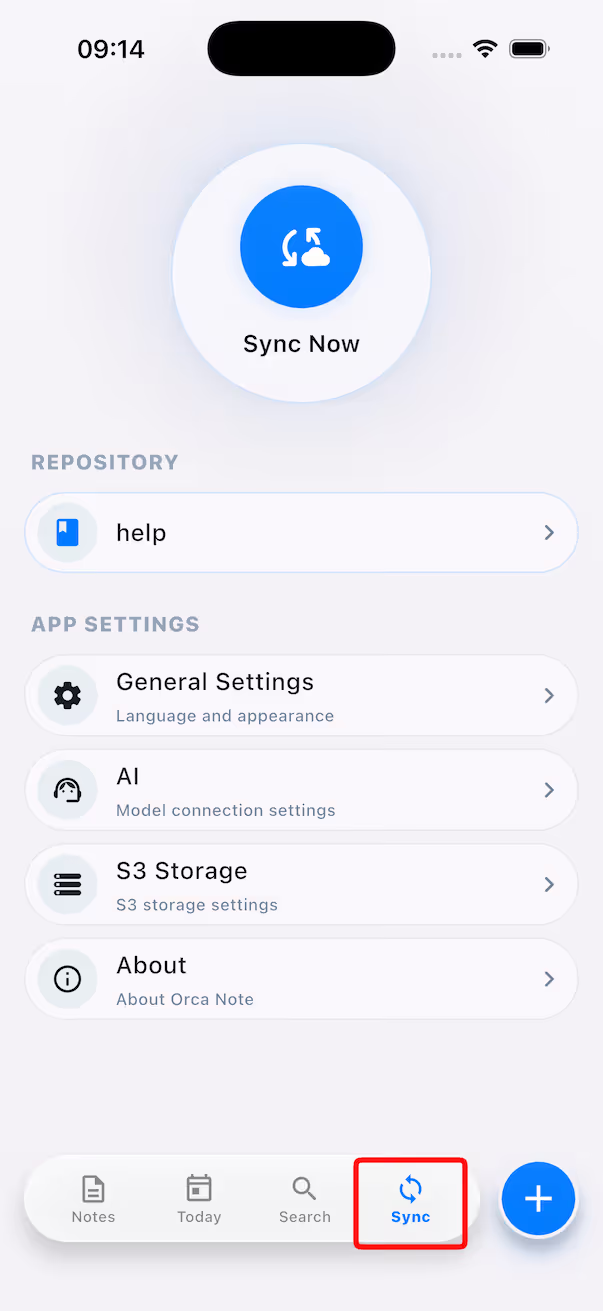
Double-tap to sync quickly
Double-tap the 'Sync' icon in the bottom navigation bar to trigger a sync manually without entering settings. Keep your local notes in sync with the cloud anywhere, anytime.
-
 03 / 12
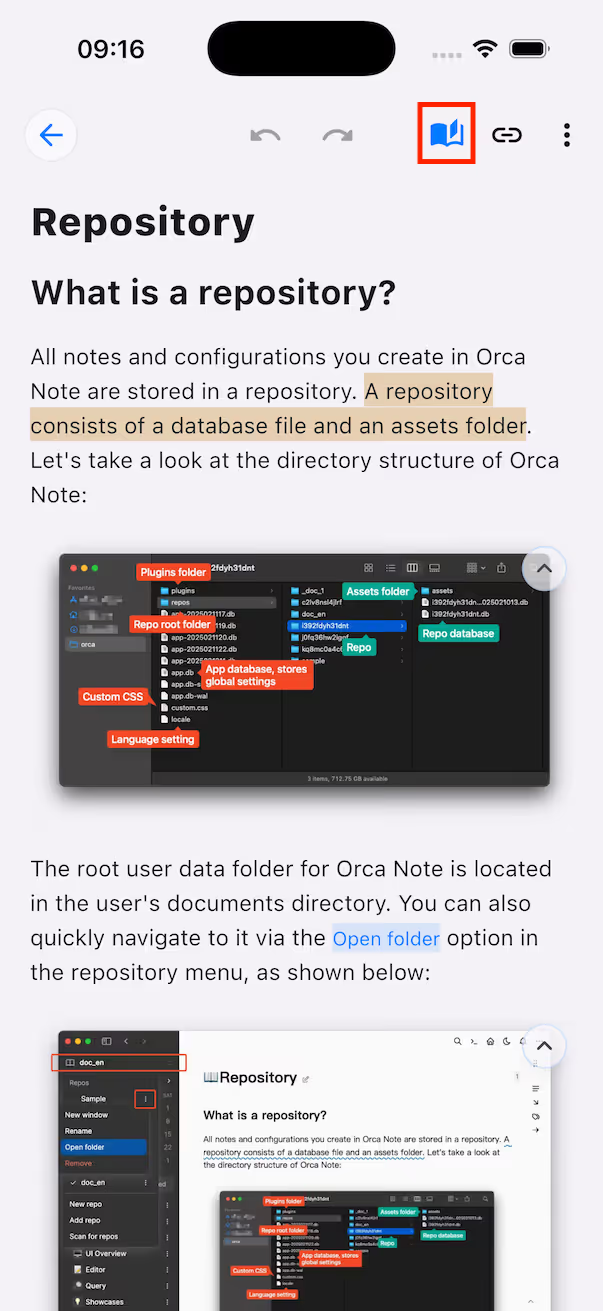
Long-press to lock long-form mode
Long-press the 'Long-form mode' icon in the top toolbar to lock long-form mode. After you switch to other pages, it will still stay in long-form mode; tap the icon again to unlock it and return to outline mode.
-
 04 / 12
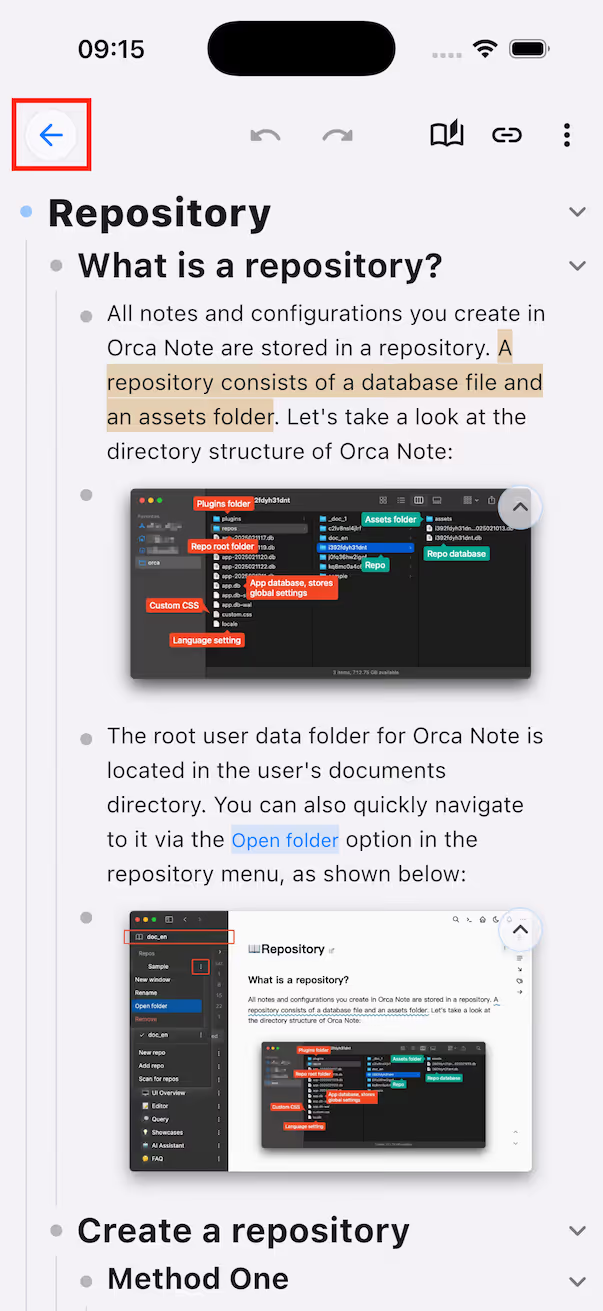
Long-press back to quickly return to the main screen
Long-press the back arrow at the top-left on any note page to skip navigating back level by level and jump straight to the main screen — handy for returning to the start after browsing deep.
-
 05 / 12
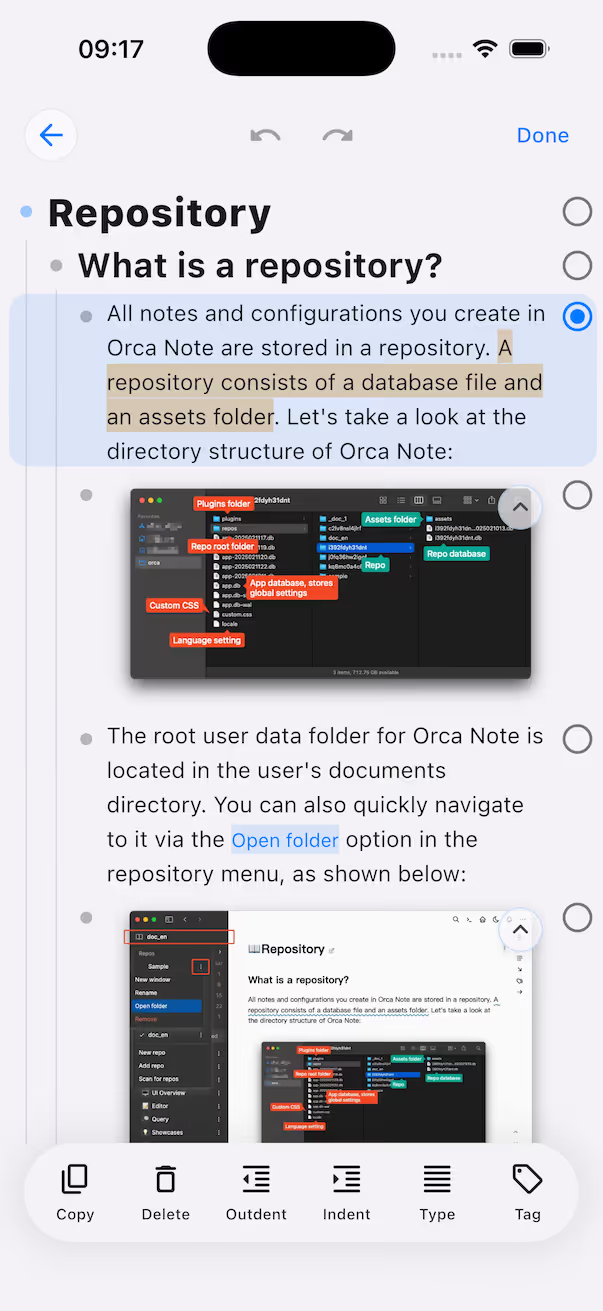
Swipe right on a non-editing block to enter selection mode
Swipe right on a block that is not in the editing state to enter selection mode. A selection circle appears on the right side of the block, making it easy to batch-process multiple blocks afterwards.
-
 06 / 12
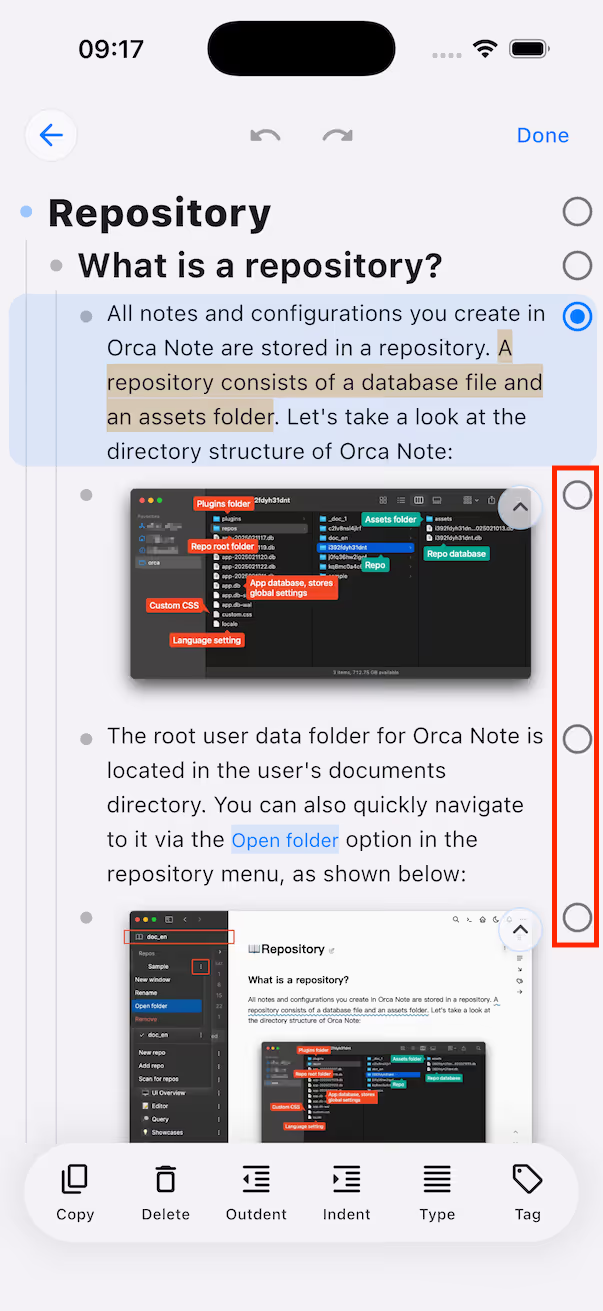
Swipe continuously to quickly select blocks
Once in selection mode, swipe continuously up or down on a block's selection circle to quickly batch-select or deselect neighboring blocks. Selected blocks are highlighted, so you can move, delete, or adjust them all at once.
- 07 / 12
Long-press and drag to move a block
After selecting, long-press anywhere on a block to start dragging it; release at the target position and the block drops into its new place. A handy way to rearrange your outline.
-
 08 / 12
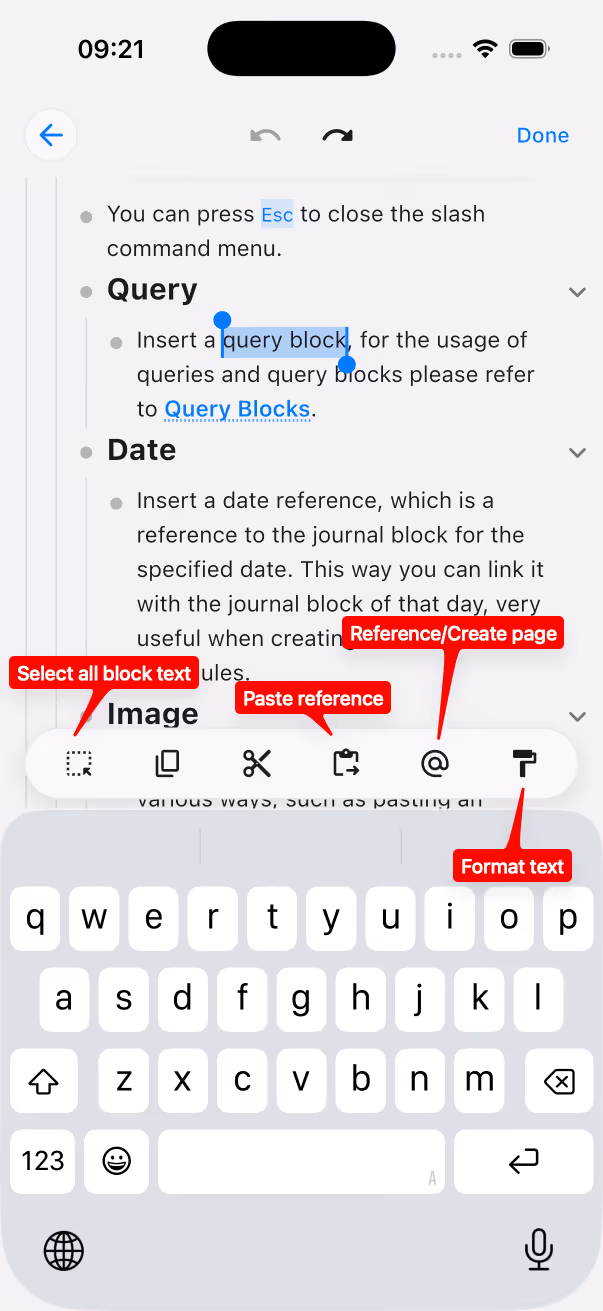
Quickly select all block content
While editing with a selection, tap the 'Select all block text' button in the editing toolbar to quickly select the entire content of the current block. You can then copy, cut, or directly replace the whole text.
- 09 / 12
Create a page or reference
After selecting text, tap the 'Reference/Create page' button in the editing toolbar to turn the selection into a new page or link it to an existing reference — convenient for building bi-directional links.
- 10 / 12
Select text and paste a reference
While editing, select a piece of text and tap the 'Paste reference' button to paste a previously copied block or page in as a reference, keeping the selected text as the link text.
-
 11 / 12
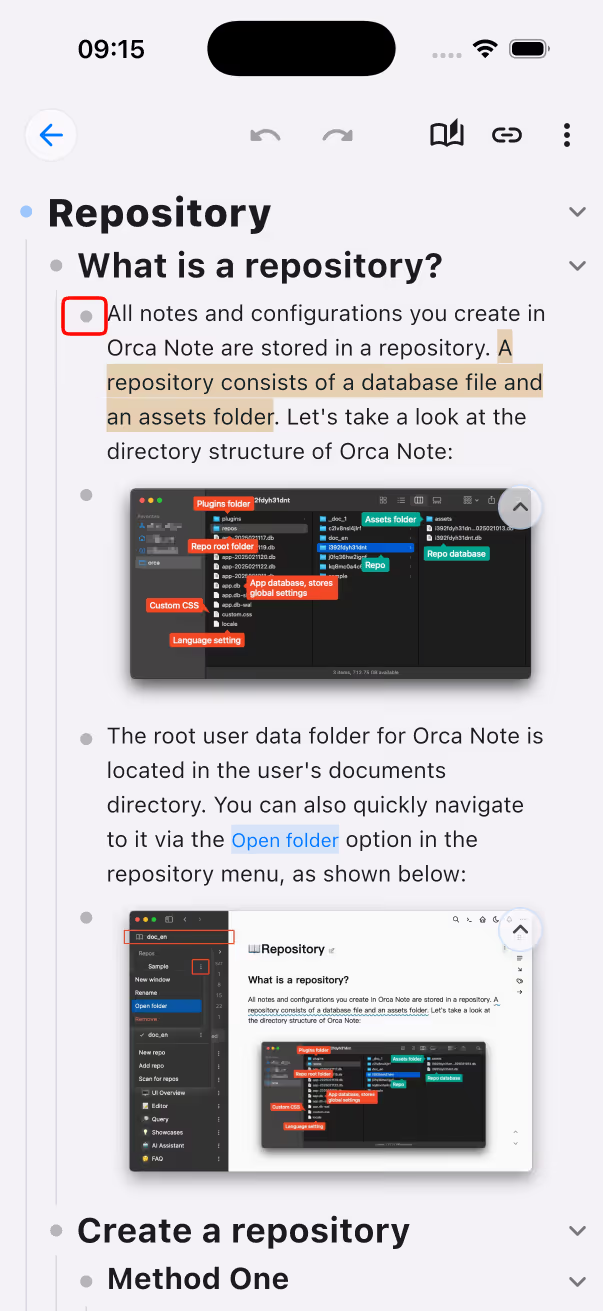
Long-press a block's dot to show more actions
Long-press the dot on the left of a block to reveal a menu of more actions for that block, such as insert above, insert below, favorite, and more.
-
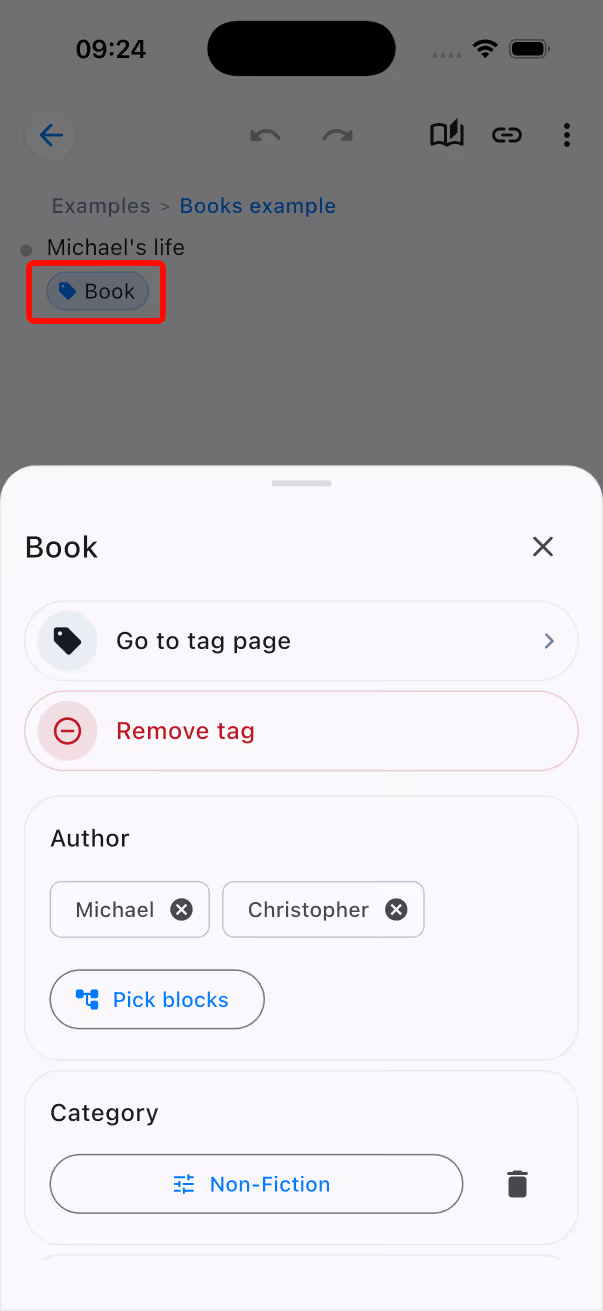 12 / 12
Tap a tag instance to fill in tag properties
Tap a tag instance in a note to open the tag property panel, where you can quickly fill in or edit the tag's properties (such as author, category, etc.), or jump to the tag page or remove the tag.